NETWORKING FOR DEVOPS #Day_4

👋 Hi there! I'm Vaishnavi Modakwar, a dedicated DevOps and Cloud Engineer with 2 years of hands-on experience in the tech industry. My journey in DevOps has been fueled by a passion for optimizing and automating processes to deliver high-quality software efficiently.
Skills: Cloud Technologies: AWS, Azure. Languages: Python, YAML, Bash Scripting. Containerization: Docker, ECS, Kubernetes. IAC: Terraform, Cloud Formation. Operating System: Linux and MS Windows. Tools: Jenkins, Selenium, Git, GitHub, Maven, Ansible. Monitoring: Prometheus, Grafana.
I am passionate about demystifying complex DevOps concepts and providing practical tips on automation and infrastructure management. I believe in continuous learning and enjoy keeping up with the latest trends and technologies in the DevOps space.
📝 On my blog, you'll find tutorials, insights, and stories from my tech adventures. Whether you're looking to learn about CI/CD pipelines, cloud infrastructure, or containerization, my goal is to share knowledge and inspire others in the DevOps community.
Let's Connect:
I'm always eager to connect with like-minded professionals and enthusiasts. Feel free to reach out for discussions, collaborations, or feedback. Wave me at vaishnavimodakwar@gmail.com
What is Networking?
Networking is the process of connecting computers, servers, and devices to share resources, data, and communication, much like friends sharing messages via phones 📱.
Importance of Networking in DevOps
In DevOps, networking is super important because it helps different parts of a system talk to each other. Imagine you’re organizing a big event, and you need to make sure all the teams (like food, music, and decorations) can communicate and work together smoothly. That’s what networking does in DevOps—it ensures that all the different services and tools in the cloud can work together seamlessly.
Real Life Example
Let’s say you have a few devices at home—a laptop, a smartphone, and a smart TV. When you connect them all to your home Wi-Fi, they form a network. Now, they can share files, stream movies, or print documents, just like friends sharing photos in a chat group. Networking makes all of this possible!
The Internet
What is Internet?
The internet is a global network connecting millions of private, public, academic, business, and government networks, similar to a worldwide spider web 🕸️ connecting everything.
Data travels across the internet through a series of routers and servers, akin to a postal service delivering mail across countries ✉️🌐.
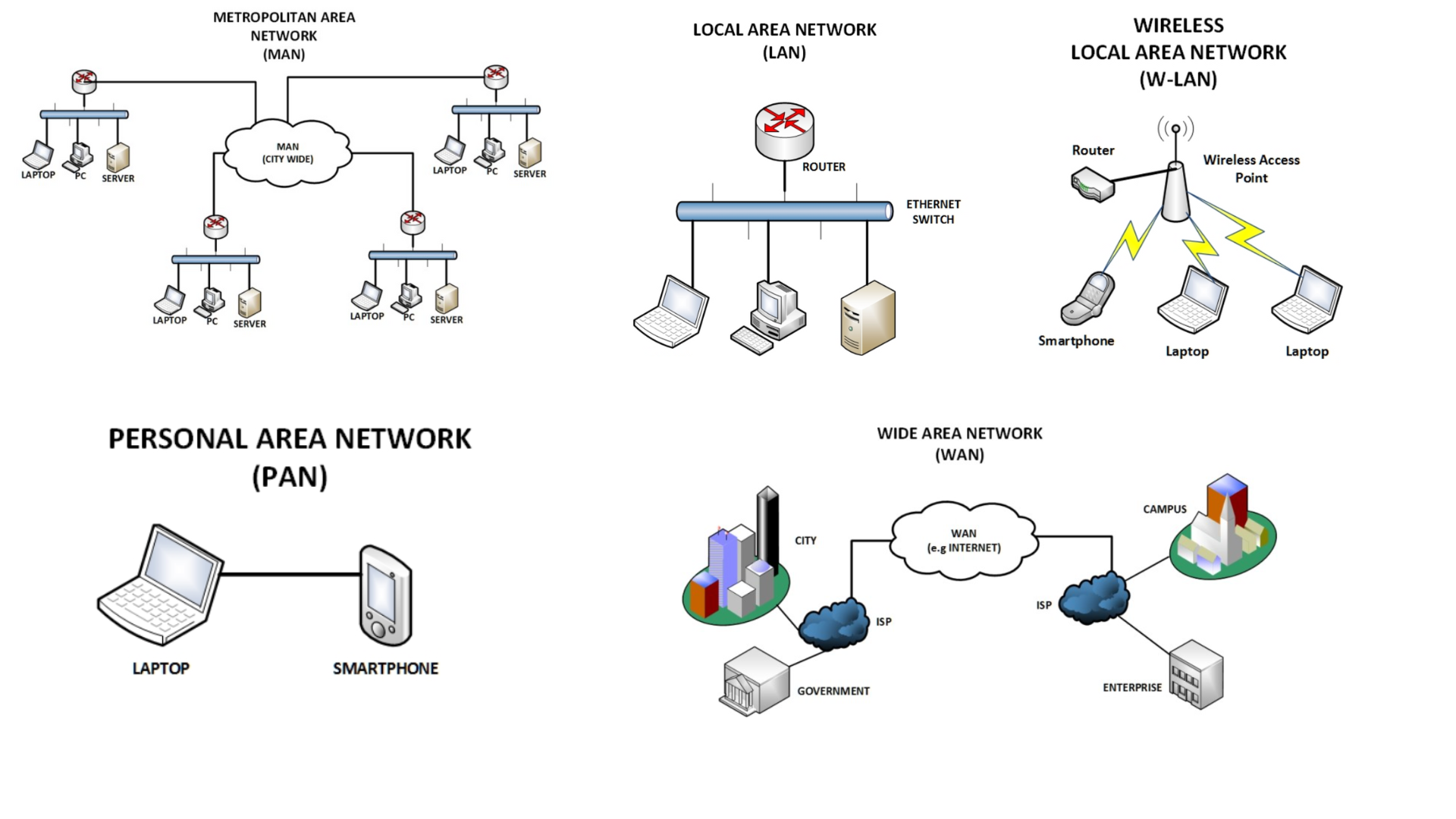
Types of Networks
LAN: LAN is a network confined to a small area like a home or office, similar to an office building 🏢 where all computers are connected.
PAN: A PAN (Personal Area Network) is a small network that connects devices like phones and laptops within a short distance for easy communication.
W-LAN: A WLAN (Wireless Local Area Network) is a network that connects devices wirelessly within a limited area, like a home or office.
MAN: A MAN (Metropolitan Area Network) is a network that connects devices across a city or large area.
WAN: WAN covers a larger geographical area, like a city or country, resembling highways connecting different cities 🛣️.
Network Interface Card (NIC) 💻🔌
What is a NIC?
NIC is the hardware that connects a computer to a network, enabling communication with other devices, like a translator helping a computer "speak" the network's language 🗣️💻.
Types of NICs:
Compare wired and wireless NICs, using examples such as ethernet cable vs. Wi-Fi connections 📶🔗.
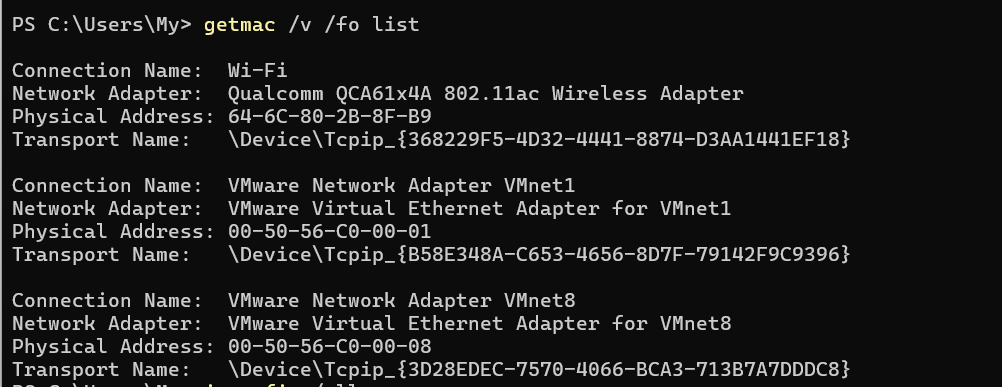
Example: I have attached a screenshot on how to check NIC on Windows
> Go to your terminal and give getmac /v /fo list command or ipconfig /all. you will get the below output.
> For Linux you can check with ifconfig -a or with ip command.
Network Protocols
Common Protocols Overview:
HTTP/HTTPS: These are the protocols used to load websites. HTTP is like sending a postcard 📬—anyone along the way can read it. HTTPS, on the other hand, is like sending a letter in a sealed envelope 🛡️—only the intended recipient can read it, making it secure.
FTP/SFTP: FTP (File Transfer Protocol) is used to transfer files between computers. It’s like sending a package 📦 to someone, but SFTP (Secure File Transfer Protocol) is like sending that package through a secure, locked courier service 🗂️, ensuring no one can tamper with it.
SMTP(Simple Mail Transfer Protocol): This protocol is used to send emails. It’s like a digital version of the postal service 📨. SMTP handles the process of sending your email from your computer to the recipient’s inbox, just like how a letter moves through the postal system.
DNS (Domain Name System): DNS is like the internet’s phonebook 📖. When you type a website address (like www.google.com)into your browser, DNS translates that address into an IP address (a set of numbers), which is the actual location of the website on the internet. This translation is what allows your browser to find and load the website you want to visit.
Example:
Let’s say you want to visit a website. You type in the web address (like www.googgle.com) and hit enter. Your computer doesn’t know where www.google.com is located, so it asks the DNS (the internet’s phonebook) for the IP address. The DNS looks it up, finds that www.google.com is located at 192.0.2.1 (for example), and sends this information back to your computer. Now your computer can contact that IP address and load the website.
You can actually see this process in action by using tools like
digornslookup.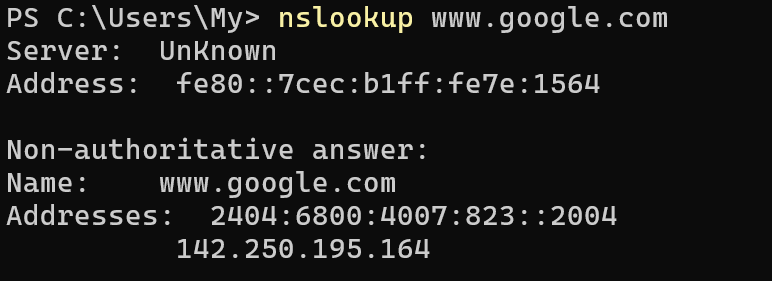
Subnets / CIDR
Introduction to Subnetting:
Subnetting is like dividing a large classroom into smaller groups for better management 🏫. In networking, it splits a big network into smaller sections called subnets, making it easier to handle and route data. It is having two types :
Public Subnets: Which have access to internet.
Private Subnets: Which does not have access to internet.
CIDR Notation:
CIDR (Classless Inter-Domain Routing) is a shorthand for specifying subnet sizes. It combines an IP address with a slash (/) and a number that shows how many bits are used for the network part. For example, 192.168.1.0/24 means the first 24 bits are for the network, leaving the rest for devices.
To calculate the number of IP addresses remaining in a subnet after n addresses have been allocated we can use 2^32 - n
Here's how it works:
2^32 represents the total number of IP addresses in IPv4, which is 4,294,967,296 addresses.
n is the number of IP addresses already used or allocated.
So, 2^32 - n gives you the number of IP addresses still available in the IPv4 address space after subtracting the addresses that are already in use.
eg: 2^32-24 = 2^8 = 256 - 5= 251 that means 251 IP's where remaining.
SSH / SCP
SSH (Secure Shell)
SSH, or Secure Shell, is like creating a secure tunnel 🛤️ between your computer and a remote server, allowing you to access and control that server as if you were right there with it. Imagine you're sending secret messages to a friend far away, but you don't want anyone to intercept them. You would use a special, secure path that only you and your friend can access. SSH works in a similar way—it encrypts the data you send, making sure that no one else can see it.
In DevOps, SSH is crucial because it lets engineers securely connect to remote servers, manage them, and execute commands without needing to be physically present.
SCP (Secure Copy Protocol)
SCP, or Secure Copy Protocol, is a way to securely transfer files between devices. Think of it as sending a valuable package 📦, but instead of just handing it off, you put it in a locked, tamper-proof container 🔐. SCP ensures that the files you transfer are protected from being intercepted or altered during the journey.
With SCP, you can copy files from your local machine to a remote server (or vice versa) over the secure SSH tunnel, making sure your data remains safe.
Real-Time Example:
Here’s how you can use SSH and SCP in practice:
Logging into a Remote Server via SSH:
Open your terminal.
Use the SSH command to connect to a remote server:
ssh username@remote_server_ipReplace
usernamewith your actual username on the server andremote_server_ipwith the server’s IP address.After entering your password, you’ll be securely connected to the remote server, just like walking through a secure tunnel 🛤️.
Transferring Files Using SCP:
Suppose you have a file called
backup.zipon your local machine, and you want to copy it to a directory on a remote server.scp backup.zip username@remote_server_ip:/path/to/destination/This command securely copies
backup.zipto the specified directory on the remote server, ensuring the file is protected during transfer 📦🔐.
Troubleshooting Tools 🔧🛠️
When managing networks and servers, you need tools to help diagnose and fix issues quickly. Here are some common troubleshooting tools and how they work:
1. Ping: Checking Server Reachability 🎾
What It Does:
The
pingtool checks if a server or device is reachable on the network. It’s like sending a ping pong ball 🎾 across a table—if the ball comes back, you know the other side is there and responsive.
How It Works:
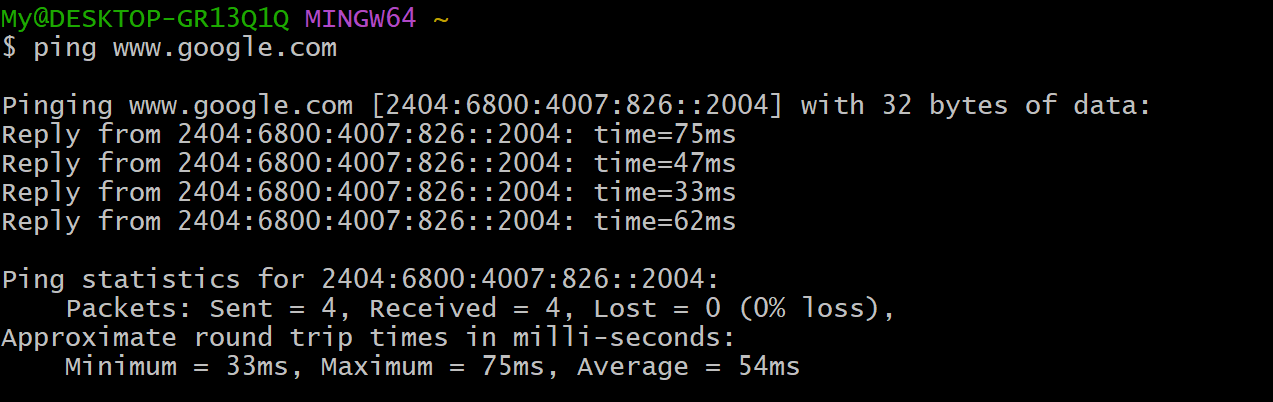
When you use ping, your computer sends a small packet of data to the target server. If the server is reachable, it sends the packet back, confirming that it’s online and responsive
ping www.google.com
Output Explanation:
You’ll see replies from the server along with the time it took for the packet to travel there and back. If you get a reply, the server is reachable; if not, the server might be down, or there could be a network issue.
2. Traceroute: Visualizing Data Paths 🚚
What It Does:
The
traceroutetool shows the path your data takes to reach a destination, like tracking a package delivery 🚚. It helps you see all the "hops" your data makes across different networks to get to the final server.How It Works:
When you run
traceroute, it sends packets to the destination and records each step (or hop) the data takes along the way. Each hop is usually a different router or server that your data passes through.traceroute www.google.com
Output Explanation:
You’ll see a list of IP addresses or domain names representing each hop, along with the time it took to reach each one. This helps identify where delays or issues might be happening along the route.
3. Netstat: Viewing Open Connections 🚪
What It Does:
Netstat(Network Statistics) shows you the open connections and listening ports on your system, similar to checking which doors 🚪 in a house are open and which rooms are being used.How It Works:
When you run
netstat, it displays all the active connections your computer has with other devices, including details like IP addresses and port numbers.netstat -an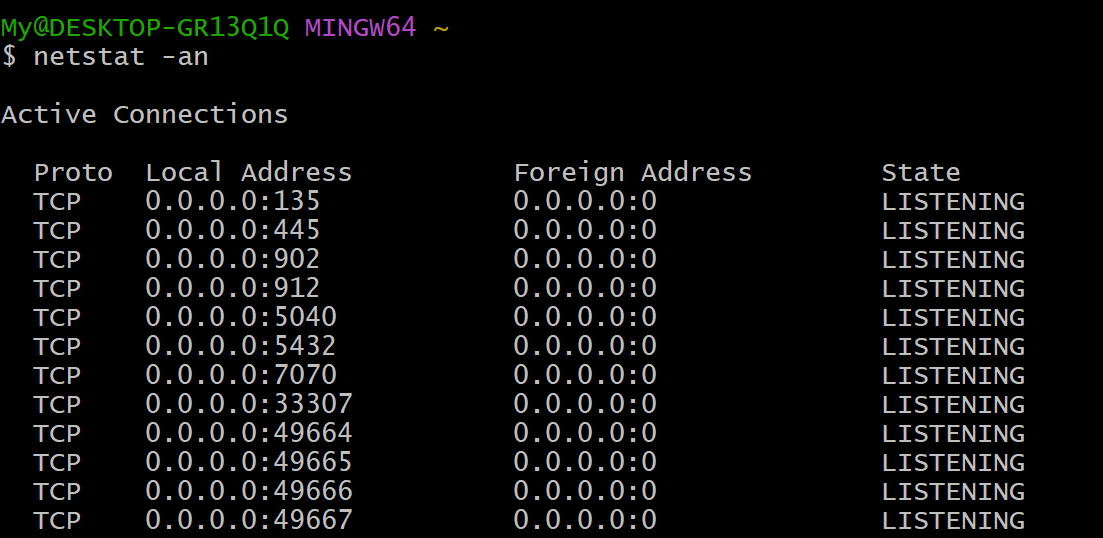
Output Explanation:
You’ll see a list of connections, with details such as the local address, the foreign address, and the state (e.g., LISTENING, ESTABLISHED). This is useful for diagnosing network issues or identifying unauthorized connections.
4. Curl: Testing API Endpoints 🥄
What It Does:
Curlis a tool used to test API endpoints or web services. It’s like tasting a spoonful of soup 🥄 before serving it to make sure it’s just right.How It Works:
With
curl, you can send requests to a web server and see the response. This helps ensure that your APIs or websites are working correctly.curl -I www.google.com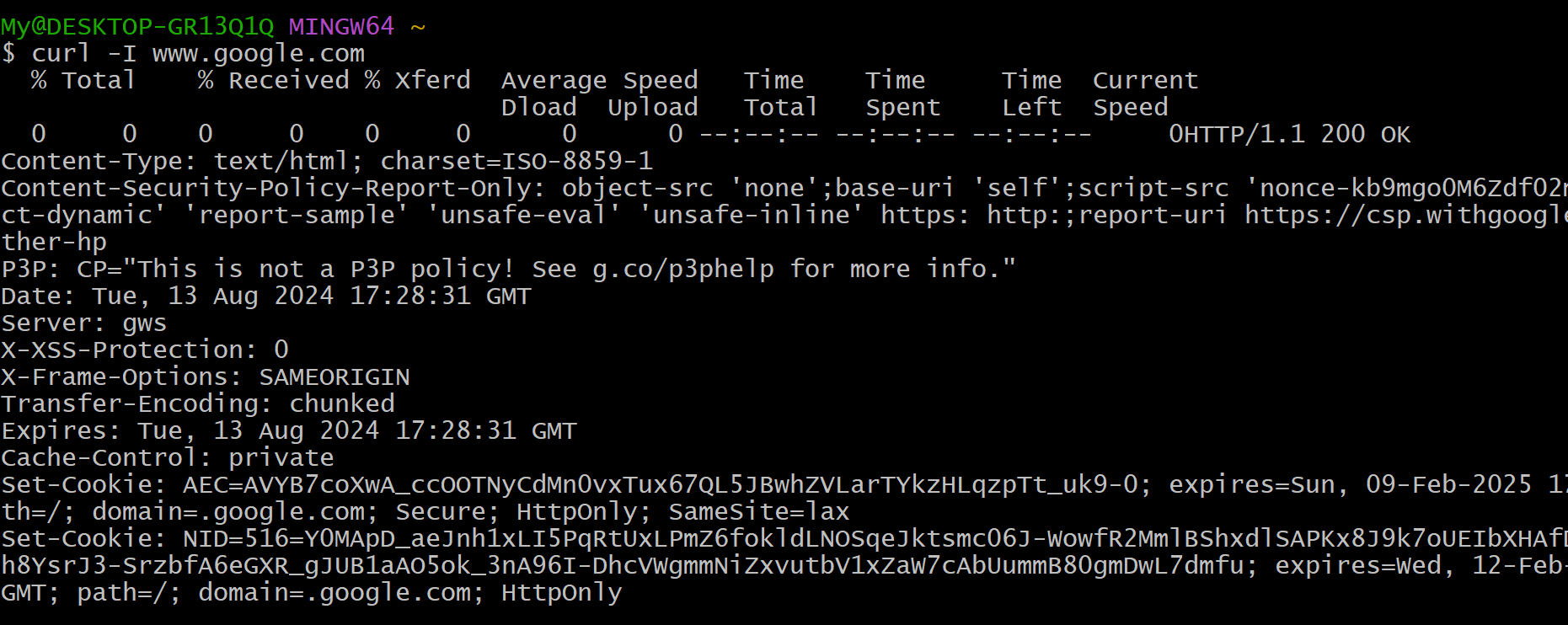
Output Explanation:
The command fetches the headers of the website, showing you the status code (e.g. 200 OK), content type, and other information. This is a quick way to check if a web server is responding as expected.
OSI Model 🗂️🌐
The OSI (Open Systems Interconnection) Model explains how data travels across a network, dividing the process into seven distinct layers, each handling a specific part of the journey.
Layers Breakdown:
Physical Layer (Layer 1):
This layer is all about the physical parts of the network, like cables, switches, and wireless signals.Data Link Layer (Layer 2):
Here, data is packaged and addressed using MAC addresses to ensure it reaches the correct device on the local network.Network Layer (Layer 3):
The Network Layer uses IP addresses to route data between different networks, determining the best path.Transport Layer (Layer 4):
This layer ensures data is delivered reliably, with protocols like TCP ensuring that everything arrives correctly.Session Layer (Layer 5):
The Session Layer manages the ongoing communication between two devices, keeping the connection open.Presentation Layer (Layer 6):
Here, data is translated into a format the receiving device can understand, and encryption is applied if needed.Application Layer (Layer 7):
The top layer interacts directly with the user, handling requests and providing data.Real-Time Example:
Imagine ordering a product online:
Step 1: You place an order on a website (Application Layer).
Step 2: The order details are formatted and encrypted (Presentation Layer).
Step 3: The order is confirmed, and the session is maintained (Session Layer).
Step 4: The package is prepared and handed off to the delivery service (Transport Layer).
Step 5: The package is routed through various cities (Network Layer).
Step 6: The package travels over roads and highways to your home (Data Link and Physical Layers).
The package is then delivered to your door, and you receive your order, completing the process.
TCP/IP Model 🌐
Comparison with OSI Model:
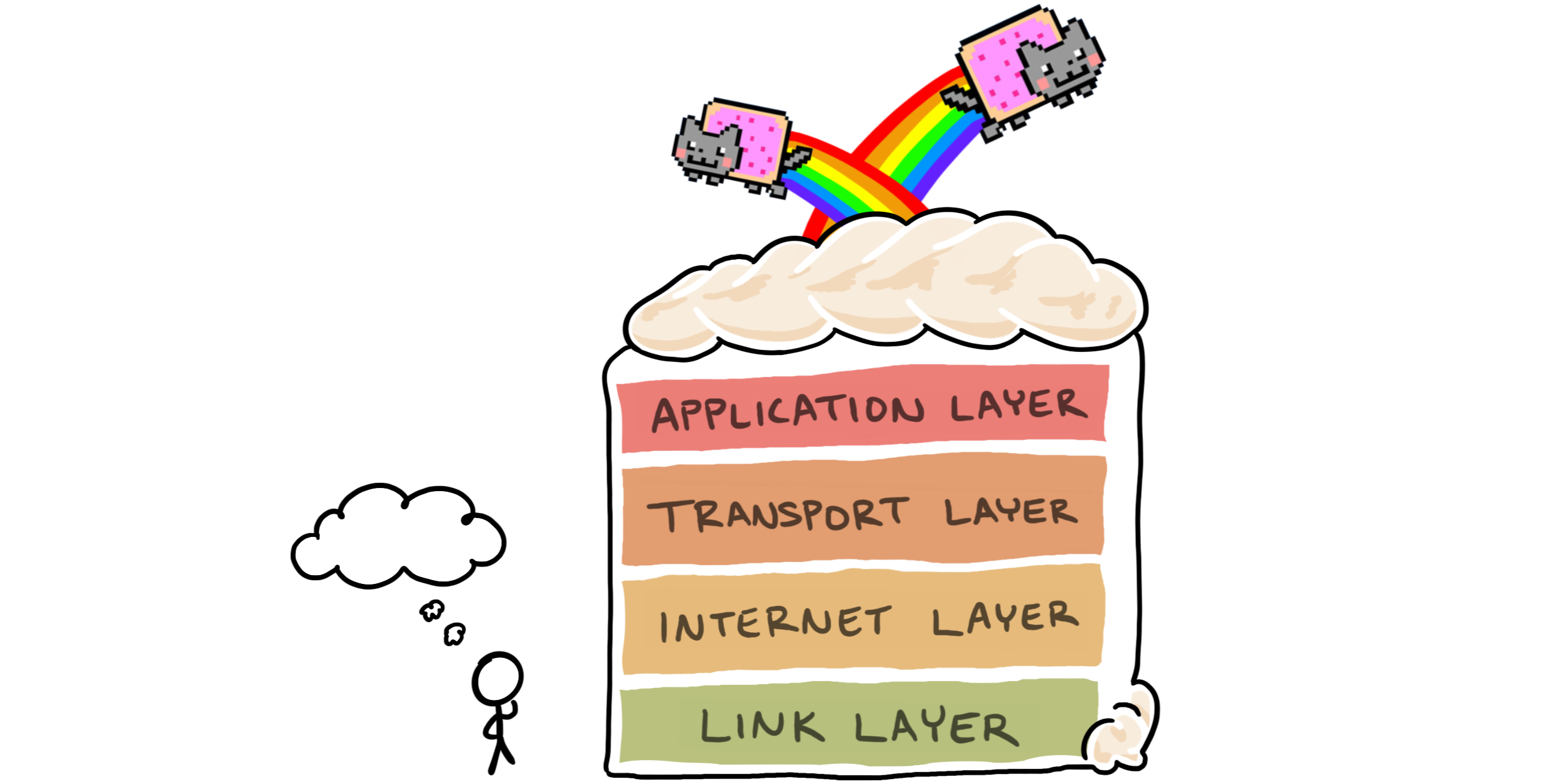
The TCP/IP (Transmission Control Protocol/Internet Protocol) model is a simplified version of the OSI (Open Systems Interconnection) model. Both models describe how data moves across a network, but they do so in different layers, similar to the layers of a cake 🎂.
Layered Cake Analogy:
OSI Model: Imagine a 7-layer cake, where each layer represents a different function in networking, from how data is physically transmitted to how it appears to the user. These layers are:
Physical Layer: The physical connection (like the cake's base).
Data Link Layer: Handling data frames (like the cake's foundation).
Network Layer: Routing data (like the middle layers).
Transport Layer: Ensuring reliable data delivery (like a frosting layer).
Session Layer: Managing sessions (like another middle layer).
Presentation Layer: Formatting data (like the top layers).
Application Layer: The interface for applications (like the cake's top).
TCP/IP Model: Now, imagine a 4-layer cake, where some layers combine the functions of the OSI model. The TCP/IP layers are:
Network Interface Layer: Combines the OSI Physical and Data Link layers.
Internet Layer: Similar to the OSI Network Layer.
Transport Layer: Directly correlates with the OSI Transport Layer.
Application Layer: Merges the OSI Session, Presentation, and Application layers into one.
Summary
The TCP/IP model simplifies networking by combining functions into fewer layers, much like a 4-layer cake 🎂. It’s closely related to the OSI model, which is more detailed with 7 layers. Tools like Wireshark help visualize how data travels through these layers during a web request, providing a clear picture of the process
MAC Addresses 🏷️🔖
What is a MAC Address?
A MAC (Media Access Control) address is like a unique identifier for your device on a local network, much like a car's license plate 🚗 identifies a vehicle on the road. Every device that connects to a network—like your computer, smartphone, or printer—has its own MAC address, which is permanently assigned by the device manufacturer. This address helps networks differentiate between devices and route data to the correct one.
Analogy: Just as a car’s license plate is unique to that vehicle and can be used to identify it, a MAC address is unique to your device. Even if two devices are on the same network, their MReal-Time Example:
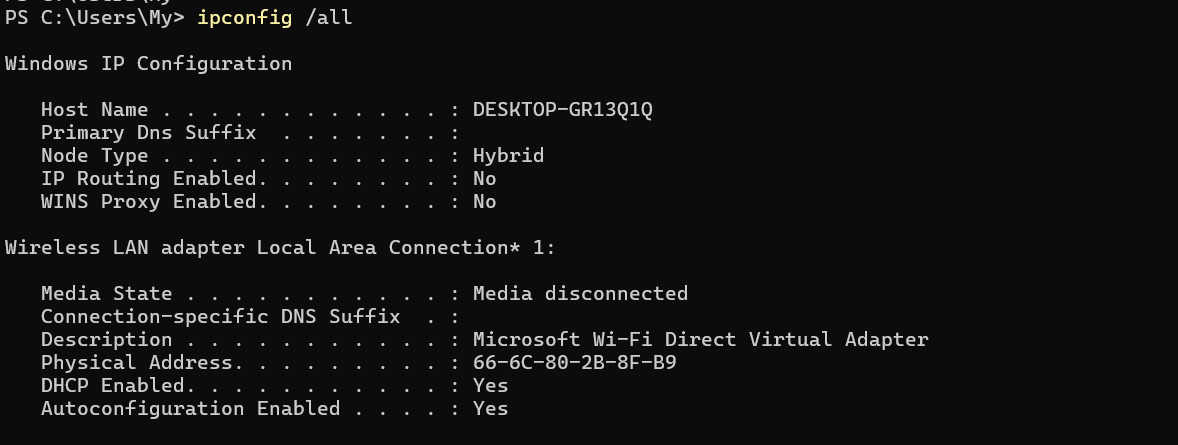
Let’s see how to find the MAC address of your device using a simple command-line tool:
On Windows:
Open Command Prompt.
Type
ipconfig /alland press Enter.Look for the "Physical Address" under your network adapter—this is your MAC address.
On macOS or Linux:
Open Terminal.
Type
ifconfigorip aon newer Linux versions and press Enter.Find the MAC address listed next to
etherorHWaddraddresses ensure they are treated as distinct entities.
Conclusion
Grasping networking basics—like the OSI Model, protocols, and troubleshooting tools is key for DevOps. These concepts help ensure smooth data flow, secure communication, and efficient network management. Mastering these fundamentals will empower you to handle network challenges and optimize your IT infrastructure effectively.
image credit for tcp/ip model to: https://www.freecodecamp.org/
Call to Action:
If you found this post helpful, don’t forget to like, share, and follow my blog for more tech insights! Feel free to drop any questions or thoughts in the comments below💬👇.